 Please Note: The ABC Atlas Assistant is being made available in public preview for a limited time. Public access is temporary and may be discontinued or modified after the preview period.
The ABC Atlas Assistant is a new way to explore and visualize data in the ABC Atlas using natural language. Simply describe what you want to see and the Assistant will find the right data, apply filters or colors, and update your view automatically. It removes the need to learn controls or search through menus, helping both new and experienced users work faster and more intuitively.
The Assistant is designed to make using the current capabilities of ABC Atlas faster and easier. It is not intended to be a resource for general scientific knowledge or be expert in every tool, data set, and paper associated with the Allen Institute.
Please note: As with all Large Language Models this Assistant can provide wrong information. Please check the accuracy of anything important.
What the Assistant Can Do
-
Suggest and add data sets
-
Color and filter multiple data sets at once
-
Copy colors and filters from one view to another
-
Describe data sets and explain abbreviations in labels
-
Provide step-by-step “how-to” guidance for using ABC Atlas features
The Assistant Currently Does Not
-
Answer scientific questions beyond the available ABC Atlas metadata
-
Perform calculations on available data such as cell counts or average gene expression
-
Provide detailed provenance or methodology explanations for the data displayed
-
Access or discuss Allen Institute or BKP products or data outside the ABC Atlas
Try Asking…
-
“Add the whole mouse brain 10x data”
-
“Color by neurotransmitter type”
-
“Copy filters from frame 1 to frame 2”
-
“What does ‘IT-L2/3’ mean?”
Please note: Allen Institute staff will have access to all chat interactions in our logs, so don’t ask it about personal stuff you wouldn’t want other people to see. For more information please consult our Privacy Policy.
Feedback
The Assistant is still in active development. If you encounter issues or have suggestions for new capabilities, please share feedback using the thumbs up/down in-app or use this feedback form to let us know about your experience.
Comprehensive technical documentation is available here: ABC Atlas Assistant Technical Documentation
Getting started
-
From the left navigation bar, select the chat bubble icon to open the Assistant tab.
Note: You can switch between tabs at any time without losing your chat thread. Closing the browser tab will reset the chat.

-
When you start a new chat, Quick Start buttons appear. Select one to begin immediately or type your own question in the input box.
-
After your first question, the Quick Start interface hides automatically. To show it again, click the new chat button in the upper right corner of the Assistant tab.

-
Ask the Assistant to add, filter, or color data or to describe datasets and abbreviations in your current view.
-
You can also ask it to find data for you with attributes you specify.
-
Give feedback! Click the thumbs up if you are pleased with the Assistant’s response, thumbs down if it could be improved.

Tips
-
Use words like “add” or “new frame” to add another frame to your view.
Use “open” or “update” to replace data in the current frame. -
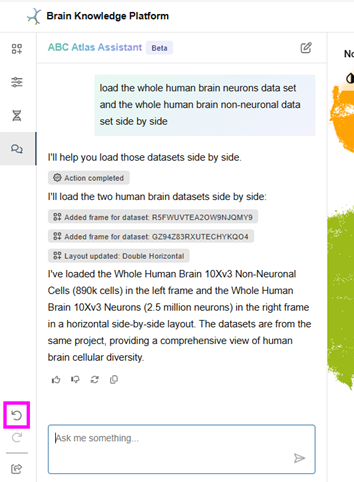
If the Assistant performs an action you didn’t intend, click Undo in the lower left corner to revert.
- If the Assistant appears to be confused or out of sync with the visualization click the New Chat button in the upper right to reset.

As always, thank you for being part of the AIBS community. Please let us know how we can improve the ABC Atlas to better serve your needs.